# Analytics Setup and Reports
Understand content visits, reading activity, and media delivery reports.
For a product overview, see [website, content, and media analytics](/analytics/). This guide covers tracker setup, events, and report interpretation.
Open **Analytics** in your organization to review published content and media activity. **Overview** summarizes the organization; **Content** and **Media** provide their own detailed reports.
## Read the Content report
Choose a reporting period, then filter by Content Space or select a file. Selecting a file also selects its Content Space. Changing the Content Space clears the file filter; **All Spaces** returns to organization totals.
| Metric | What it means |
| ------------------ | ---------------------------------------------------------------------------------------------- |
| Views | Tracked page visits |
| Reads | Visits that reach the article’s visible bottom after at least ten seconds of visible page time |
| Likes | Explicit like actions sent by your website integration |
| Estimated visitors | An estimate based on anonymous browser identifiers, not a count of individual people |
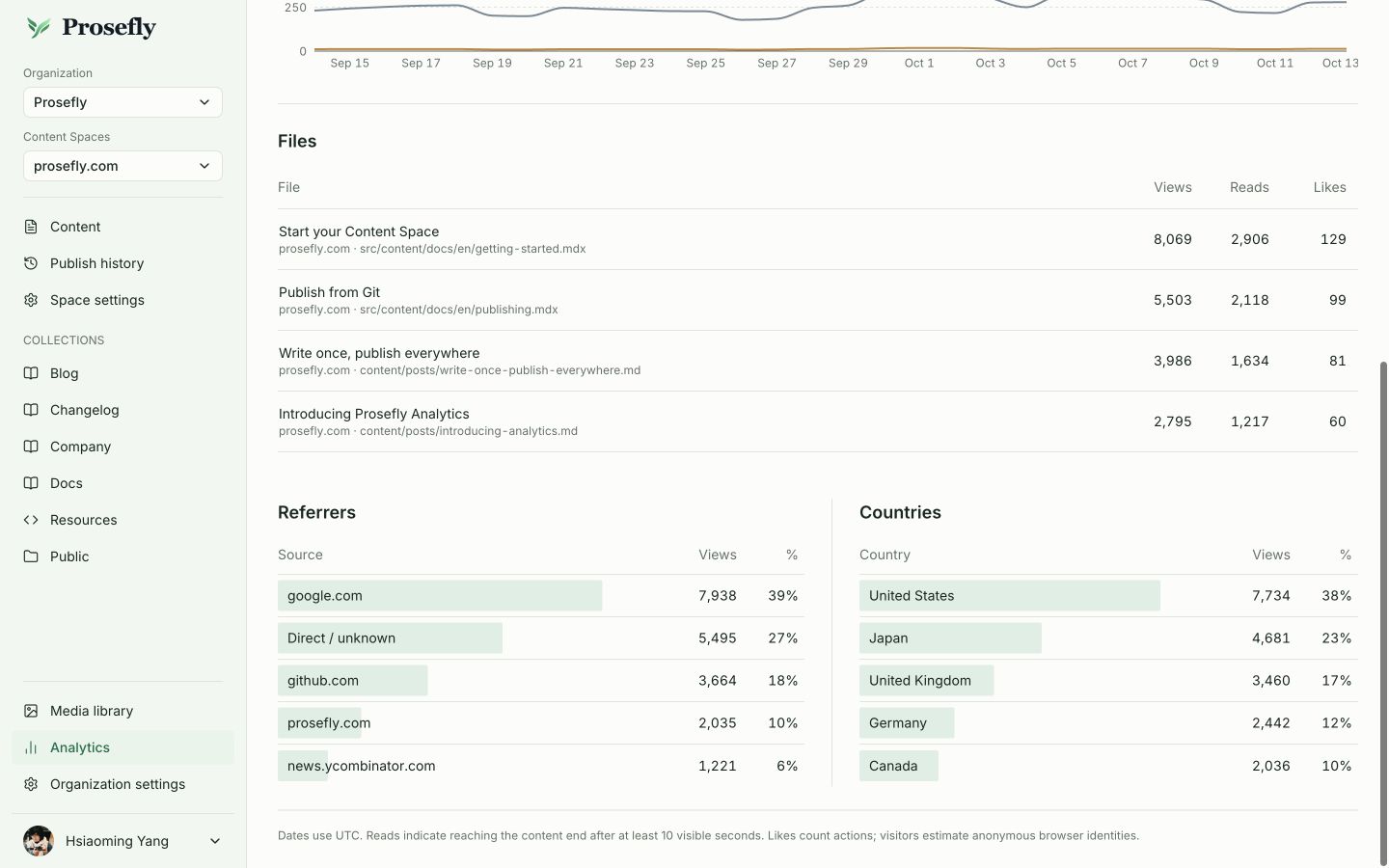
The daily trend and referrer/country breakdowns help show where visits come from. Files use the recorded page title when available, with the Content Space and repository path underneath. A template page without a content filepath can contribute to totals without appearing in Files.
A read event indicates reaching the end, not proof that the visitor understood the article. Likes require a like action in your website; the tracker does not add a button or infer likes from scrolling.
Example report with sample data. Files display their page titles, Content Spaces, and
repository paths.
## Monthly event allowance
Website analytics events are shared across all Content Spaces in your organization.
| Plan | Events per month |
| -------- | ---------------- |
| Personal | 100K |
| Team | 1M |
| Business | 5M |
All billing intervals include the same monthly allowance. Each page view, completed read, or like counts as one event. Properties such as title, filepath, and device do not add events. Tracker downloads and report queries are excluded. Audio/video requests use the separate transfer allowance.
Exceeding the allowance does not stop collection or access to reports. After two consecutive months over the allowance, we will remind you to upgrade. There is no automatic upgrade, automatic overage fee, or service suspension because of overage.
## Connect your website
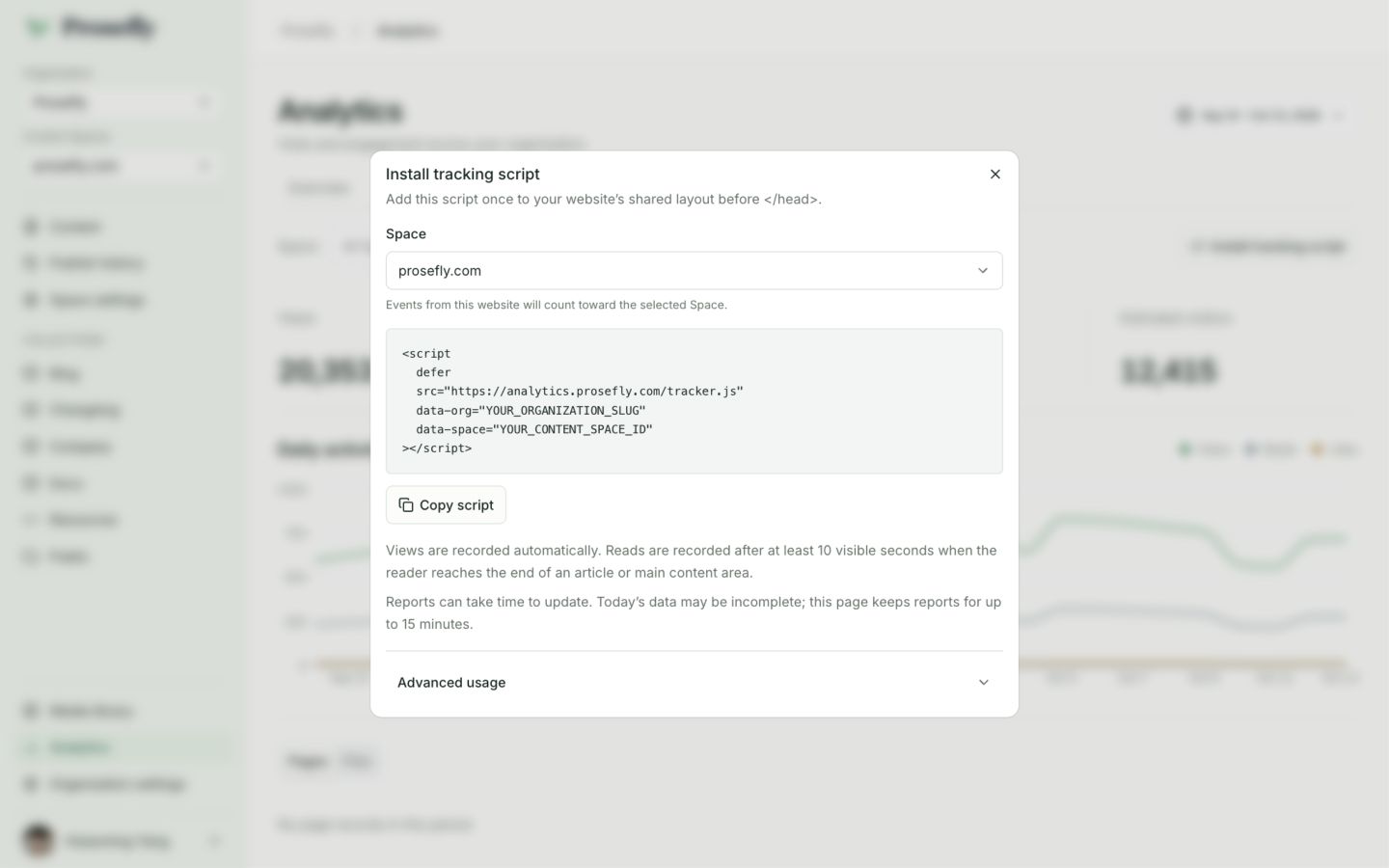
Open **Analytics → Content → Install tracking script**, select the Content Space, and copy its generated snippet. The dialog fills in the Organization slug and Content Space UUID. It does not change your report filters or install the script on your website for you.
Example setup with placeholders for the Organization slug and Content Space UUID.
Select your own Content Space and copy its generated snippet.
Load the Prosefly tracker on the website where your published content is read. Use your Organization slug and Content Space UUID, and emit the exact repository-relative source path from the content build.
```html
```
Replace YOUR_ORGANIZATION_SLUG with your Organization slug, such as prosefly, and YOUR_CONTENT_SPACE_ID with the Content Space UUID. The generated snippet already contains these values. The example filepath must also match your repository, including a Content Space’s root prefix when present. The tracker cannot guess a Git path from the page URL. For a template page without a content file, omit `data-filepath`.
In Astro, use `is:inline` on this external script so its data attributes and classic-script behavior remain intact. Skip loading it during local development to keep test visits out of your reports. You can optionally set `data-content` to a CSS selector for the article; the default checks a marked content container, then `article`, then `main`.
A site with Content Security Policy must allow the collector origin for both scripts and connections. Add the script once per page and follow your site’s applicable privacy requirements. For client-side routing, call `window.proseflyAnalytics.page({ filepath, location, content })` after rendering the next page with its current filepath; ordinary full-page navigation loads the script again normally.
```js
window.proseflyAnalytics?.page({
filepath: 'src/content/blog/en/next.mdx',
location: window.location.href,
content: 'article',
});
```
Use the new article’s real path. Omit `filepath` on a template page; it will not reuse the previous article’s path. Update the page title before calling `page()`.
## Track likes
Call `window.proseflyAnalytics?.track('like')` from your website’s Like button click handler. The event uses the tracker’s current page information, including its Content Space and filepath when supplied.
```html
```
After rendering the button, attach its click handler:
```js
document.getElementById('like-button')?.addEventListener('click', () => {
window.proseflyAnalytics?.track('like');
});
```
Each call records a like action and counts as one analytics event. The tracker does not add a button, prevent repeated likes, save a visitor’s liked state, or support undoing a like. Manage button state and repeated clicks in your website, for example by disabling the button or debouncing the handler.
## Dates and report availability
Reporting dates use UTC. Presets include today, which can differ from your local date near midnight. Data for today and recent days may still be processed and revised; reports are not guaranteed to be real-time.
Loading, no recorded activity, and an unavailable report are different states. Use **Retry** for an unavailable report. A saved-data timestamp means you are seeing a previous report, while an incomplete-results notice means the available rows were limited. An empty report alone does not prove that nobody visited the site.
## Media is a separate report
**Media** measures audio and video delivery activity with its own filters and file details. Content views and media delivery starts are different events, and their visitor estimates are not added together. See [Media library](/docs/media/#media-analytics) for media-specific limits and interpretation.