# AI writing
Improve selected text and review spelling and grammar suggestions.
Use AI while working on a draft to improve wording, shorten a passage, add detail, or check spelling and grammar. You decide what to keep, and publication remains a separate step.
## Rewrite selected text
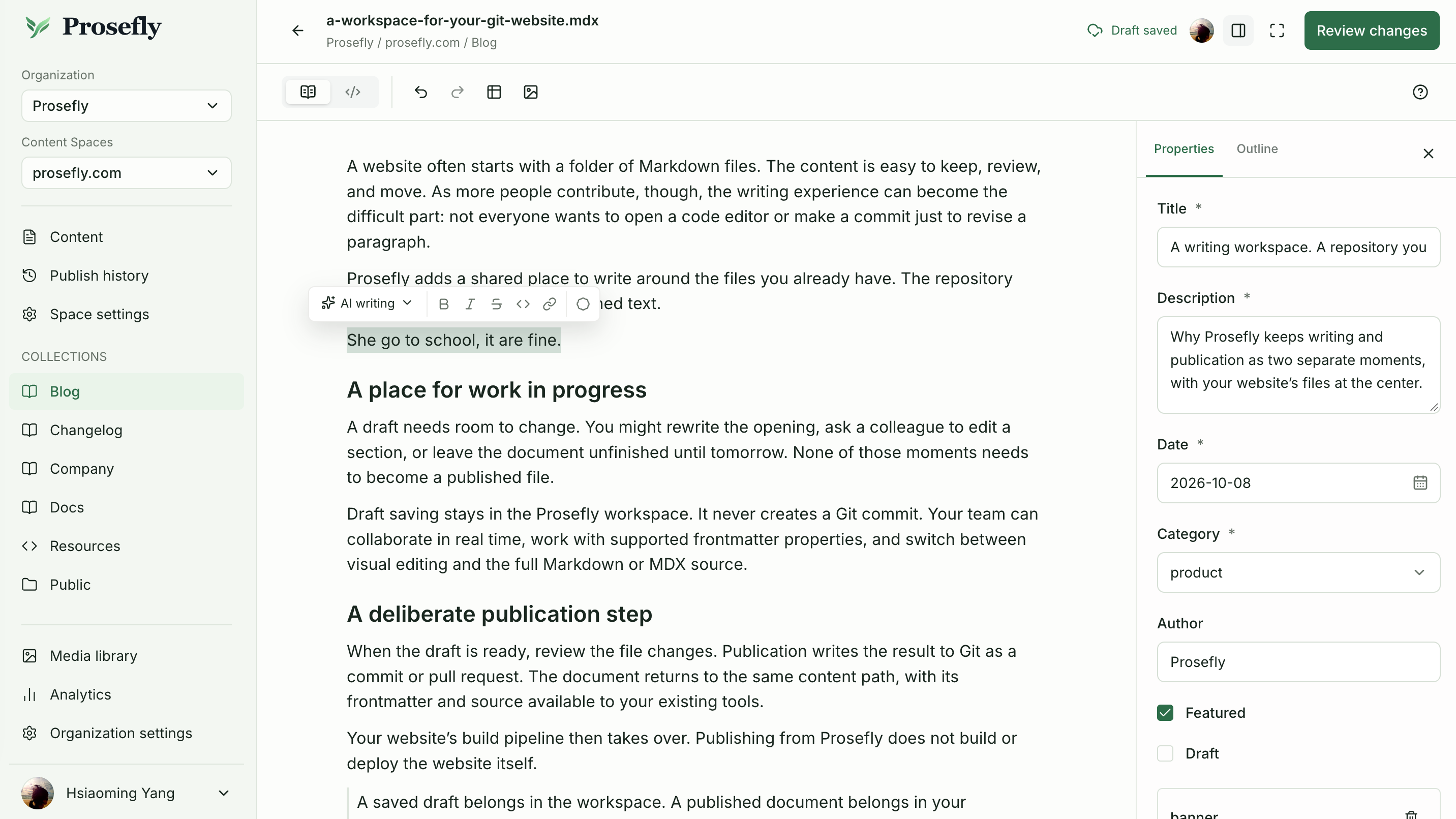
1. In Visual Editor, select the text you want to change within one text block.
2. Open the AI menu in the floating selection toolbar.
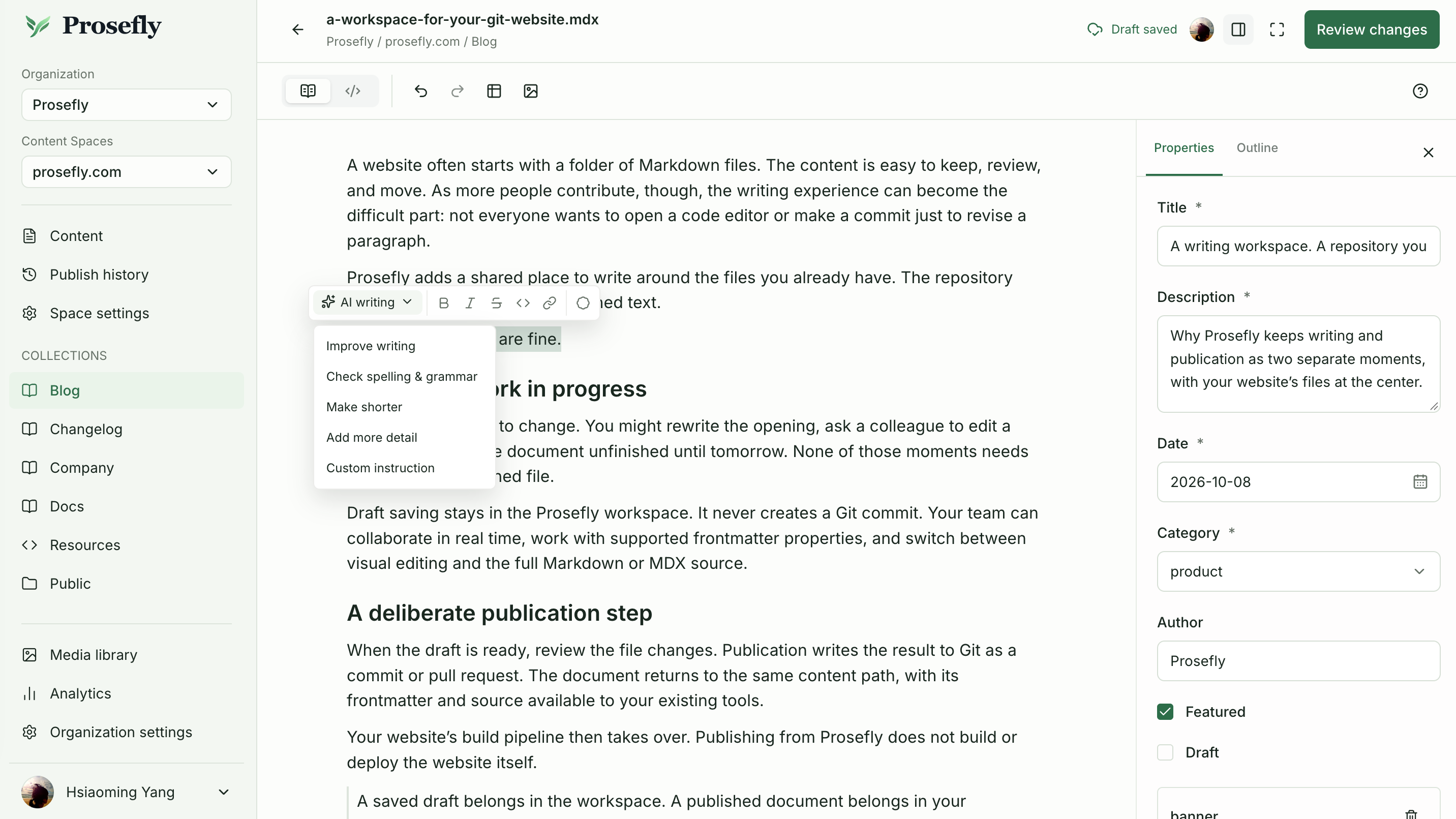
3. Choose **Improve writing**, **Make shorter**, **Add more detail**, or enter a custom instruction.
4. Wait for the action to finish, then read the replacement in context. Use the editor’s undo action if you want the previous wording back.
Select text within one block to open the floating toolbar.
Open AI writing to choose an action or enter your own instruction.
Rewriting applies the result directly to the selected text. If you or a collaborator change that selection while the action runs, Prosefly leaves the draft unchanged and asks you to try again with the current text. AI does not rewrite the surrounding document or edit code blocks through this selection workflow.
## Check spelling and grammar
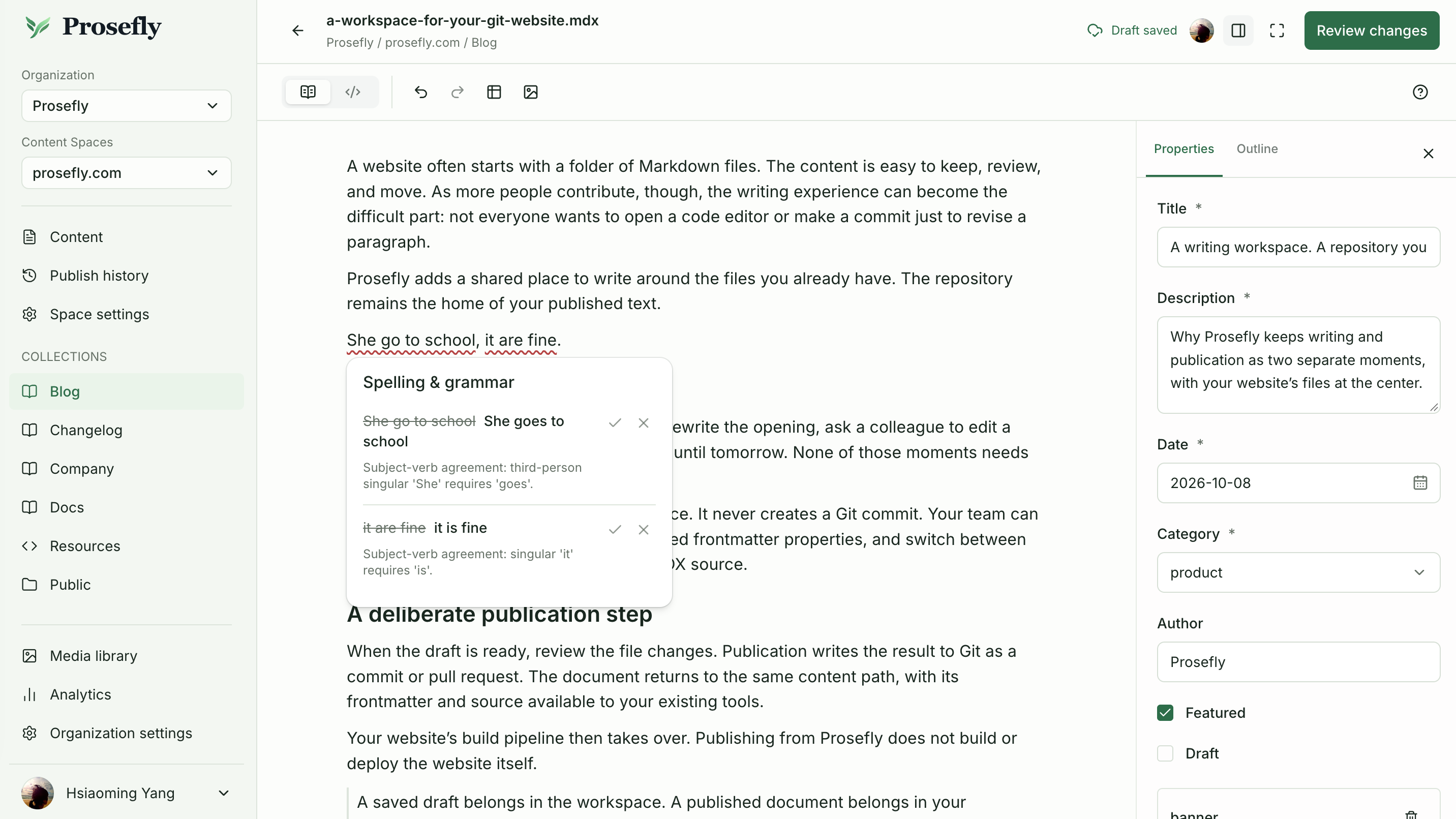
Choose **Check spelling & grammar** for selected text. This leaves the draft unchanged and marks suggested corrections with wavy underlines.
Open a marked issue to see the original wording, suggested replacement, and explanation. **Accept change** applies that suggestion; **Ignore** dismisses its marker. You can accept suggestions individually and undo an accepted edit. Closing the suggestion card leaves the other markers available to reopen.
Review each suggestion and choose whether to accept or ignore it.
## Credits and unavailable actions
Writing and article translation share your organization’s AI credits. Usage varies with the model and the amount of text processed and generated. Check **Organization settings → Billing** for usage and the next allowance reset.
If an action fails, check the error before trying again. An expired plan, unavailable AI service, or insufficient remaining credits can prevent a new task. Do not assume that a failed or interrupted request used no credits; the Billing report shows the accounted usage.
See [AI credits](/docs/organizations-and-billing/#ai-credits) for allowances. For a complete translated article, use [Languages and translation](/docs/languages-and-translation/), rather than rewriting a selection.
## Review before publication
Read AI output for accuracy, tone, names, links, and meaning. AI changes the draft only. Use [publication review](/docs/publishing/) to inspect the files before creating a commit or pull request.