# Repositories and Spaces
Organize repository content into Spaces and Collections.
## Understand the hierarchy
An **Organization** owns memberships and its workspace. It connects **Repositories**. Each repository can contain several **Spaces**, and each Space contains **Collections** of content entries.
Use a separate Space for a distinct content area or website. A Collection groups files that share a content structure or editor profile.
## Discover existing content
Connect a GitHub repository and scan its configured branch. Review the detected candidates before confirming them. Prosefly supports framework-aware discovery for supported Astro content setups and Fumadocs, and generic Markdown Collections for Hugo content.
Repository code is not executed in the editor. Custom loaders or dynamic configuration may require manual configuration in [`.prosefly/config.yaml`](/docs/configuration/) and may not support native navigation editing.
Follow [Connect GitHub](/docs/connect-github/) for the account authorization, repository selection, and first scan.
## Configure a Space
Owners and admins can manage Space configuration, Collection paths, editor profiles, and publication mode. Check the target branch and content paths before your first publication.
When automatic discovery cannot describe the repository, define the Space and its Collections in [Repository configuration](/docs/configuration/). A configuration-managed Space is updated by editing `.prosefly/config.yaml` and scanning the repository again.
## Manage website navigation
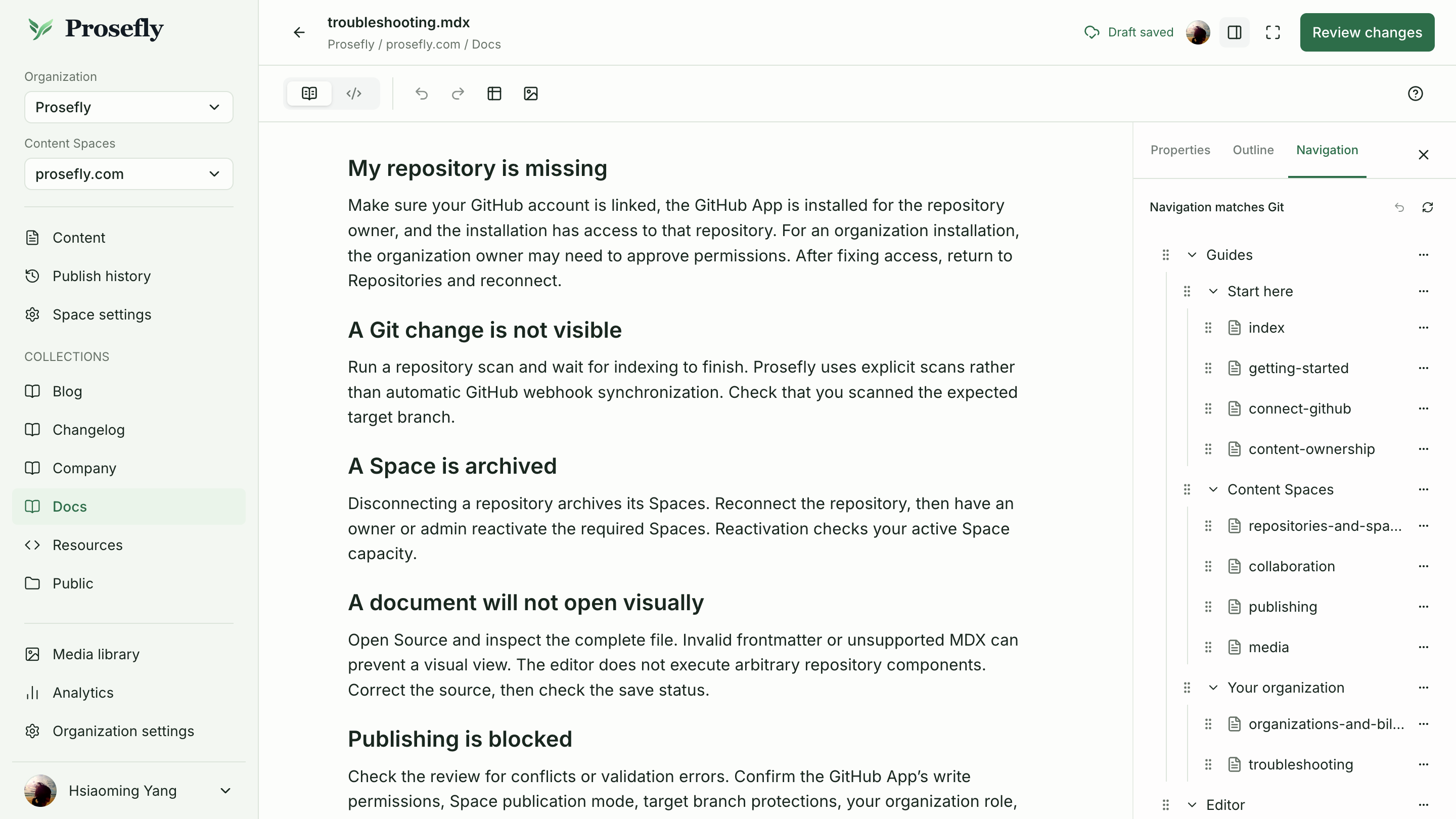
For supported Starlight, Lotus, Dahlia, and Fumadocs configurations, a scan can detect native navigation. Confirm the detected binding before using the Navigation panel. Owners and admins can also detect and confirm a binding in Collection settings.
1. Open a document and select **Navigation** beside Properties and Outline.
2. Check the existing sections, groups, and page entries. Add an unlisted page to a supported writable group, or drag supported items to change their placement or order.
3. Wait for the navigation save status in the panel before opening publication review. Saving a navigation change does not write to Git.
### Starlight
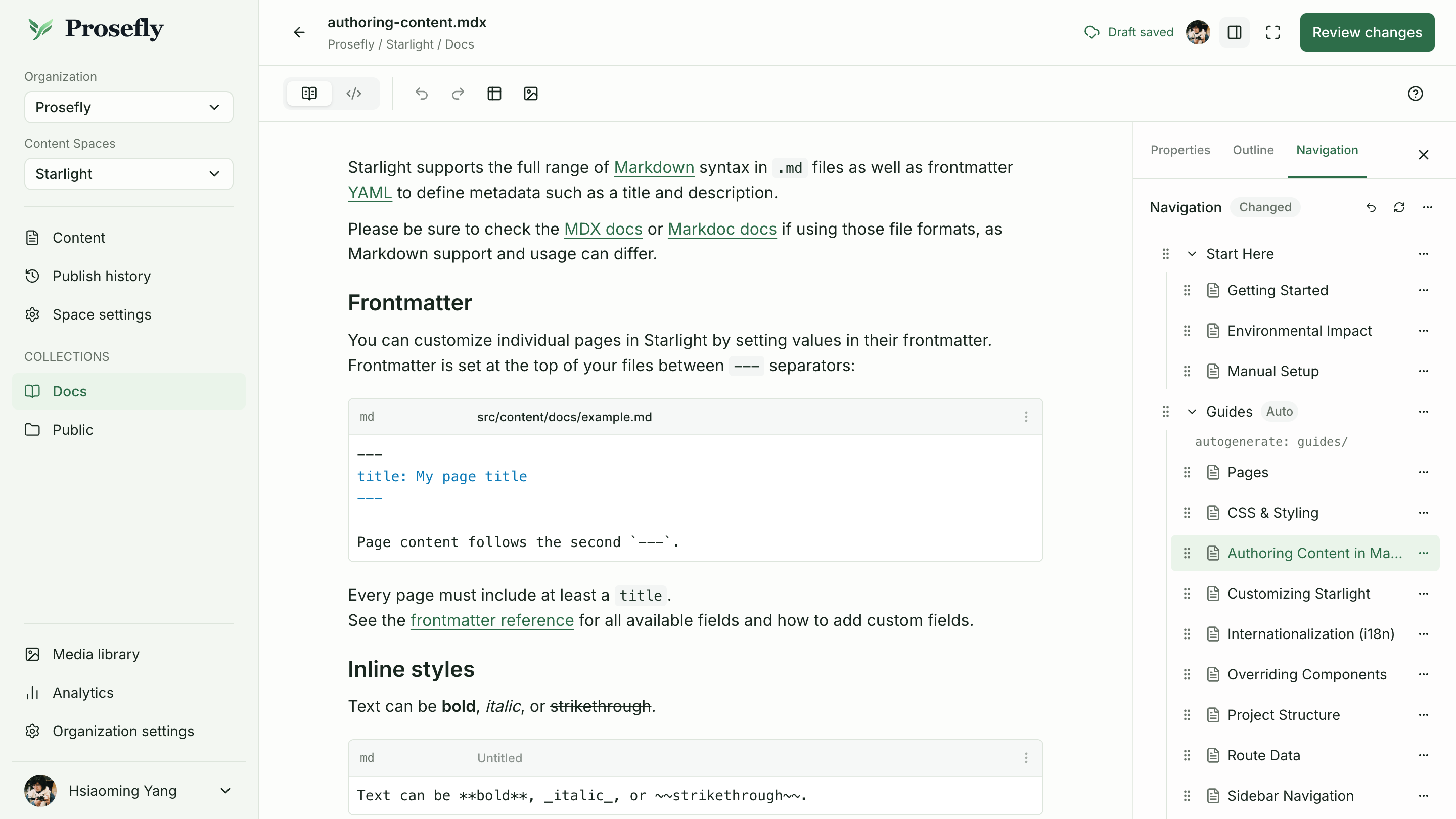
Starlight supports both manual sidebars and automatic groups configured with `autogenerate: { directory: 'guides' }`. In an automatic group, drag existing pages to reorder them within the same directory. Prosefly updates their `sidebar.order` frontmatter without moving the Markdown files. Review those ordering changes alongside the document and navigation configuration before publishing.
The Navigation panel labels automatic groups **Auto** and shows their configured directory.
Start Here contains manual entries. Guides is generated from guides/; reorder its
existing pages within the same directory.
### Lotus and Dahlia
Prosefly docsNav example (used by Lotus and Dahlia): edit the document and arrange its
existing website navigation from the same editor. Navigation save and Git
synchronization status appear in the panel.
View full-size screenshot
Unsupported or ambiguous configuration may require content-only publication. A content-only publication does not add the page to the website’s sidebar.
Open [publication review](/docs/publishing/#review-content-and-navigation-together) to inspect the document and any affected navigation files before publishing.
## Refresh and archive
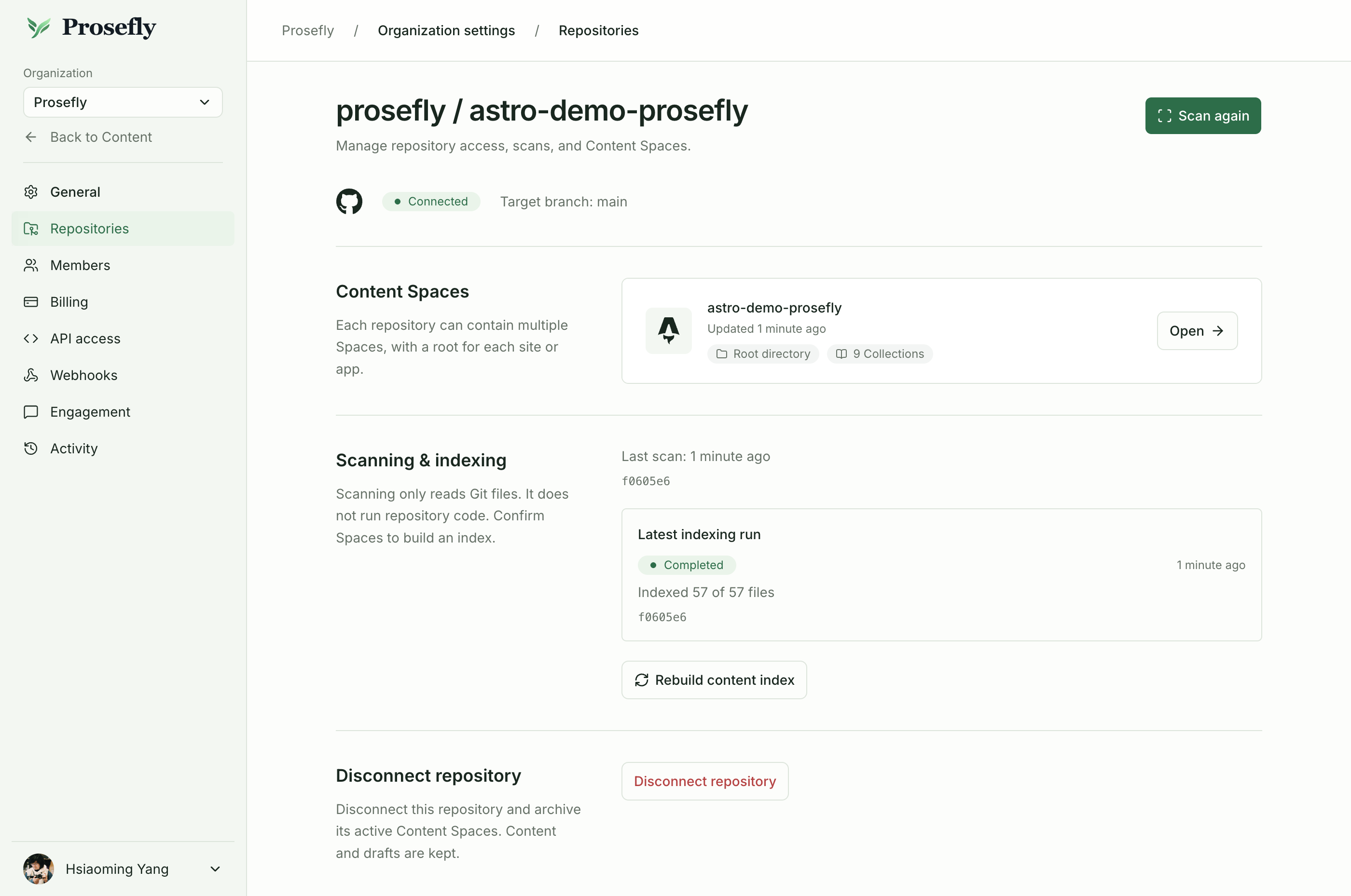
Git changes are reflected after an explicit scan and index rebuild, not through automatic GitHub webhook synchronization. Archived Spaces remain visible for review and can be reactivated by owners or admins, subject to capacity. Disconnecting a repository archives its Spaces; reconnecting does not automatically reactivate them.
Repository settings show the target branch, content Spaces, and indexing status.