Markdown
Images
Choose images and keep repository paths or uploaded URLs.
Add an image
Use the image button in the main toolbar or the Image entry in /. Choose a ready image from the media library, or upload one through the editor. Select the image to access its available controls and edit its descriptive alt text.
Edit in Visual
Select the image to edit its alternative text, then switch to Source to inspect the stored path.
 images.md
Loading editor…
Edit Markdown, MDX components, and frontmatter. Switch to Visual to apply your changes.
An interactive example. Changes stay on this page.

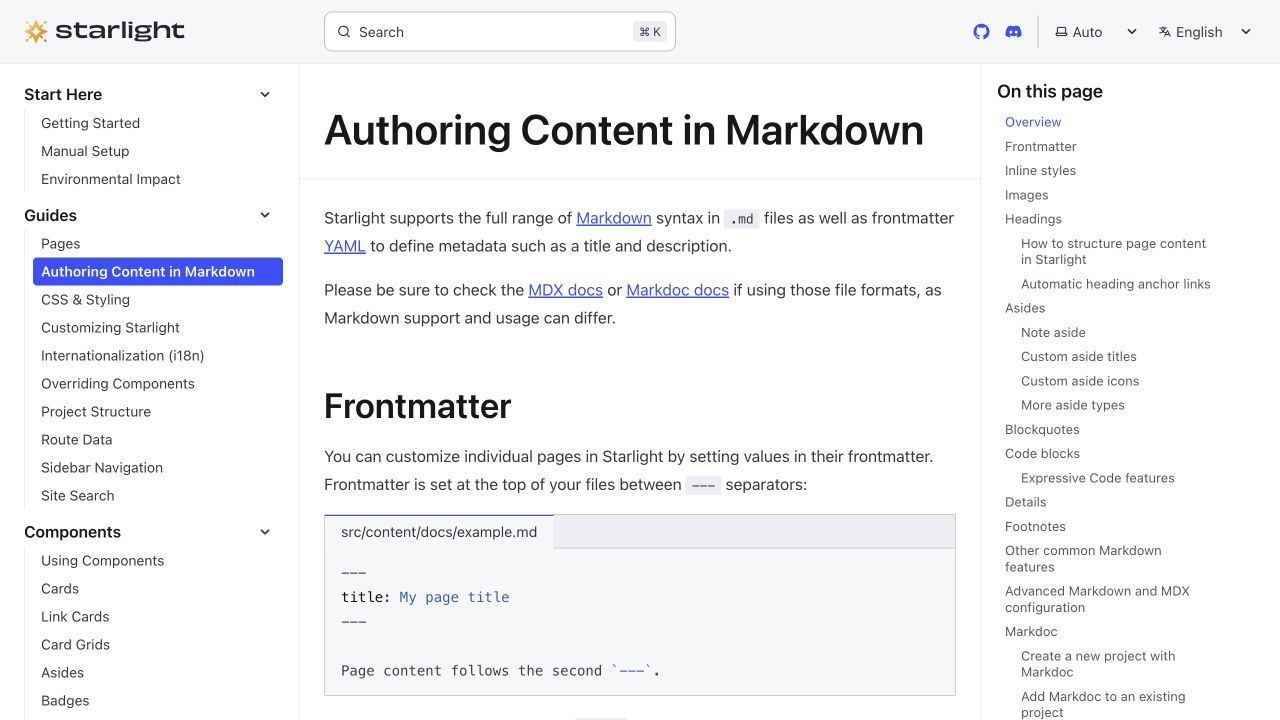The path above is an example: use a file that exists in your website, or an uploaded image URL.
Repository images
Relative paths resolve from the content file. Root paths use the Content Space’s public directory. Existing repository image paths remain Markdown paths when edited visually.
Uploaded images
Choose Public in the image picker for repository images, or Media for hosted images. Public uploads become repository files when published; Media uploads provide public URLs and remain separate from Git. Choose alt text that describes the image’s purpose, especially for instructional screenshots. Use a caption for explanations that all readers should see.
See Media for storage rules and Audio & Video for other formats.
Last updated Oct 19, 2026