
CMS integration
Connect Fumadocs to a CMS
Connect Fumadocs MDX to Prosefly, edit supported page fields and components, and publish reviewed meta.json navigation changes.
Use Prosefly as a CMS for your existing Fumadocs documentation. Edit MDX, supported page properties, and native page lists while your application keeps rendering the website.
An owner or admin sets up the repository, Collections, and publication mode. Writers work in the editor and save drafts without using Git commands. The workflow does not require changing your application’s framework or host.
1. Identify the document source
Check the source definition and the directory containing your MDX files. A standard configuration is:

import { defineDocs } from 'fumadocs-mdx/config';
export const docs = defineDocs({ dir: 'content/docs' });
For this example, keep content/docs/index.mdx and content/docs/getting-started.mdx as the pages. The site’s native loader should consume the same document source through docs.toFumadocsSource().
Prosefly also reads supported inline defineDocs() definitions from fumadocs-mdx/macro in lib/source or src/lib/source. The directory, schema, and loader need to be statically readable; source filenames alone do not define a Collection. Keep your existing working setup rather than copying an unrelated application’s configuration.
2. Connect the repository and confirm Collections
Open Organization settings → Repositories, connect GitHub, and scan the repository’s target branch. Follow Connect GitHub for account linking and GitHub App access.
Check the application root, content directory, document Collection, and detected editor profile. Review the fields and matching native navigation binding before confirming the Content Space. Wait for indexing to finish before opening a document.
defineDocs() supplies native page properties, including Title, Description, Icon, and Full, unless your schema changes them. Some fields appear under More properties. A custom document Collection uses its own supported schema. Navigation metadata and translation JSON files are not imported as MDX documents.
3. Edit MDX and supported components
Open a document from Content. Write Markdown visually, update page properties, and use supported Fumadocs callouts, tabs, steps, and accordions. Use Source for custom components or expressions that have no visual control.
The shared visual editor, shown with a Prosefly MDX component. Use the Fumadocs editor example for its specific component controls.
Try Fumadocs-specific controls in the Fumadocs editor example. The example requires no account and resets on refresh. In a connected Content Space, saved drafts remain in Prosefly until you publish them.
4. Keep page order in meta.json
The Navigation panel uses a confirmed native binding between the document Collection, its loader, and supported meta.json page lists. For the two example pages, an explicit list is:


{ "title": "Documentation", "pages": ["index", "getting-started"]}Open Navigation to arrange supported page entries or place an unlisted document in an existing writable list. Wait for the navigation save status. Review the document and all affected owning or ancestor meta.json files together before publishing.
A single document source with static loader options and readable page arrays supports this workflow. Merged sources, generated API pages, custom runtime plugins, or localized meta files may require content-only publication. Publishing content only does not add it to a navigation list.
5. Choose a publication mode and review the files
An owner or admin chooses the Content Space’s publishing mode. The shared settings below apply to Fumadocs as well.
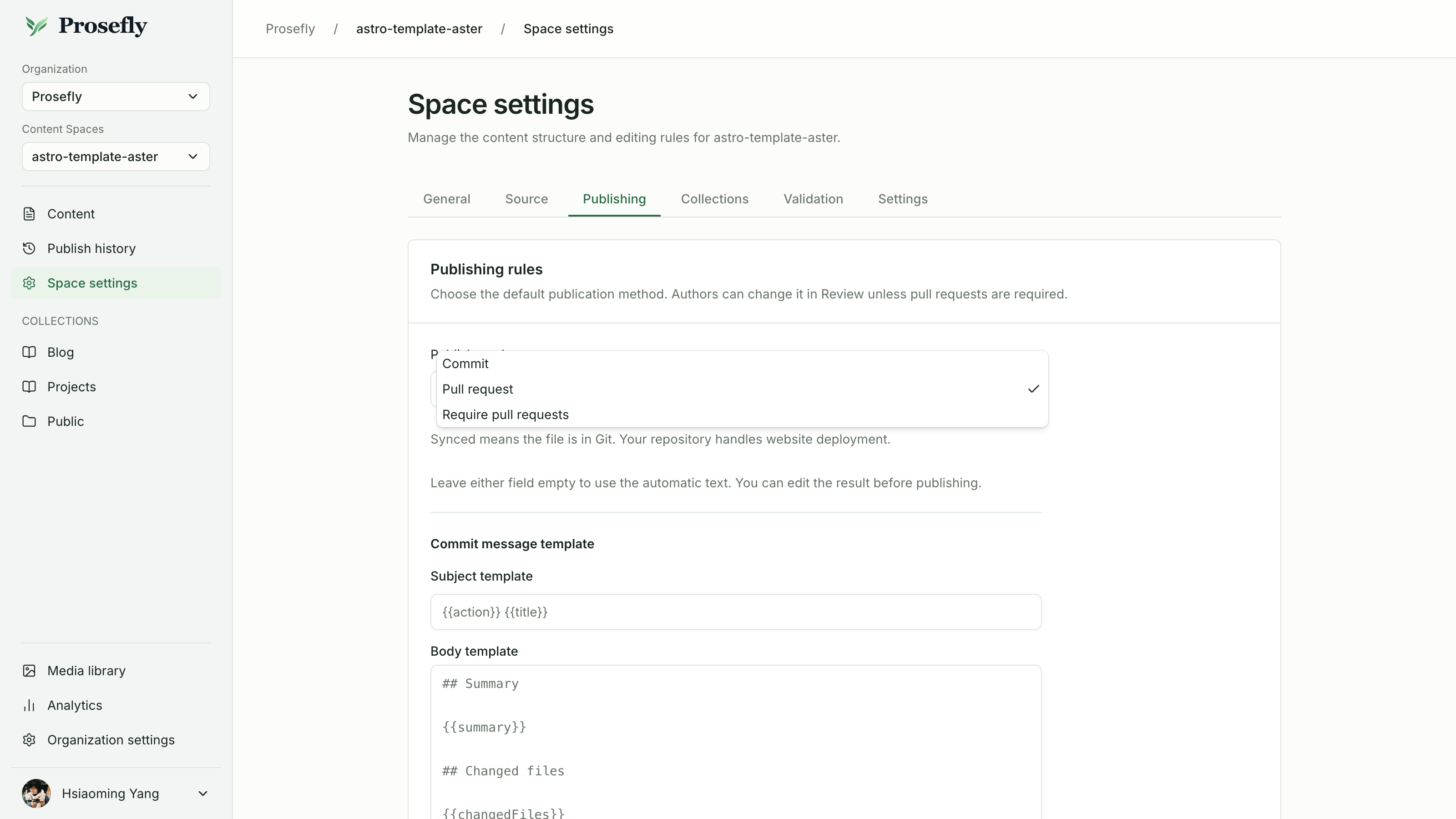
Shared publication settings, shown in an Astro Content Space. Fumadocs uses the same publication-mode selection.
Open publication review and check the MDX path, page fields, and affected meta.json diffs. Commit writes to the configured target branch; Pull request creates a reviewed branch and PR. With a PR, merge it before expecting the target branch or site to update.
The existing Fumadocs application builds and deploys the published files. Prosefly does not run that application. After the build, check the page content and navigation on your website.
If navigation is unavailable
Check that the binding uses the same document source as the site, with supported static loader options and readable meta.json lists. Review the detected configuration in Collection settings. After changing source configuration outside Prosefly, scan again and confirm the updated binding. Use content-only publication when the site’s runtime navigation cannot be edited through the native binding.
Continue with the Fumadocs CMS overview, product documentation workflow, Visual Editor guide, or Fumadocs Collections documentation.
Last updated Oct 19, 2026