
Visual Editor
Write documents, edit supported components, and switch to source.
Open a document
Open a Markdown or MDX entry from Content. Use the mode switch above the document to choose Visual or Source. If a document cannot be parsed for visual editing, use Source to repair it.
Insert and format content
Type / to open the insertion menu. The available blocks depend on the Collection’s editor profile. Select text to open formatting controls; hover over a block to reveal its movement handle and options.
Use the main toolbar to undo or redo changes and choose an image. Individual blocks expose their own controls, such as table row menus or a callout’s type selector. See Markdown basics and the MDX component guides for those operations.
Properties, outline, and focus
Properties contains the frontmatter fields exposed by the Collection’s schema, such as title, date, and tags. The Outline panel lists document headings for navigation. Focus mode gives the document more room; on narrow screens, properties open in a drawer.
In a Starlight Collection, the Properties panel exposes supported native fields. The example below shows Pagefind, Template, and fields such as Edit URL and Head alongside a guide containing tabs and an aside. The available properties depend on the Collection’s schema and editor profile.
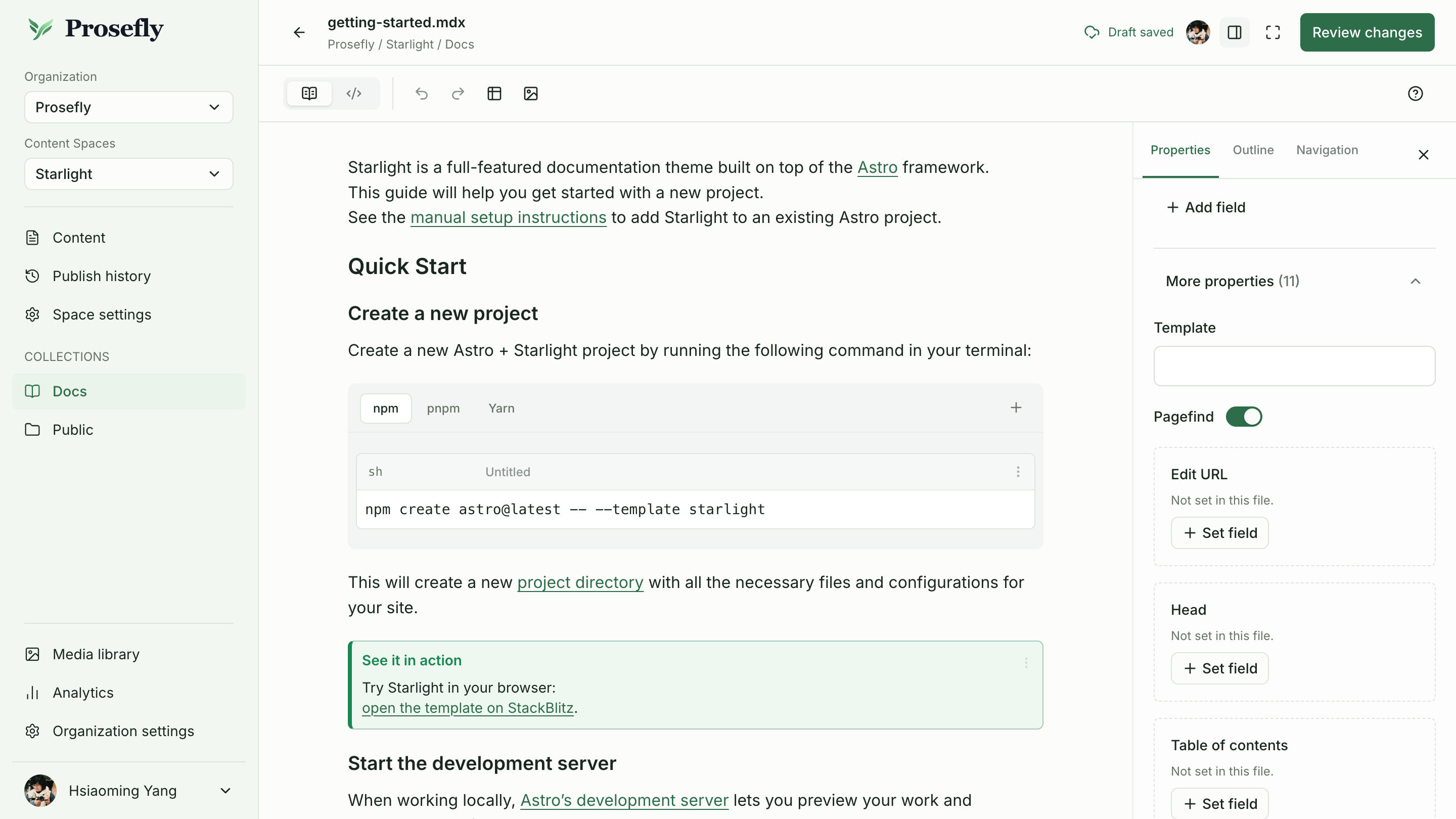
Starlight example: edit the document and its supported native page properties in the same screen.
Website navigation
Outline lists headings within the current document. Navigation shows the website’s page structure when the Collection has a confirmed, supported navigation binding.
Use Navigation to arrange pages in existing writable groups and change supported item order. Wait for the navigation save status before opening review. Saving the placement does not commit to Git.
See Manage website navigation for the panel and supported workflow, then review content and navigation together before publishing.
Work in Source
Source shows the complete file, including frontmatter, MDX imports, and custom syntax. Use it for content that has no dedicated visual control. Check any local recovery prompt against the current shared document before restoring a copy.
Save and review
Visual changes save automatically. Wait for the saved status before leaving. ⌘S on macOS or Ctrl+S on other platforms backs up local Source and saves the shared draft. Saving does not commit to Git.
Open publication review when the draft is ready. Review the source diff and any affected navigation files before publishing.
AI writing and translation
Select text within one block to rewrite it or check spelling and grammar. AI writing explains direct replacements, individual proofreading suggestions, and credits. For a complete article in another configured language, use Languages and translation. Both workflows produce draft changes for you to review.
Last updated Oct 19, 2026